Glenda on September 8th, 2009

I had an issue using my Bamboo stylus with Inkscape. It doesn’t  work properly;  the cursor disappears, lags or freezes, which can be very frustrating, making it hard to use the stylus wtih Inkscape.

It looks like Inkscape only recognizes one type of input device at a time (the mouse or the stylus). In order to make your pen work with Inkscape, try this:

  1. Open Inkscape. Click on File,  Input Devices. A new window will open; you’ll see at the top a  dropdown menu Device: Wacom Tablet Puck Transducer. Next to it is another dropdown menu, Mode; make sure Screen is selected. 
  2. Now, select from the dropdown menu Device the other items listed there and change them also to Screen.
  3. Click on Save and Close.
    It should work at least better now. If this doesn’t work, there is another solution that’s more complicated but may work for you: that is to use a Patch. I tried it and didn’t work for me. But here is the information if you want to try it:

 Close Inkscape if you have it open.

  1. Go to the My Computer Icon on the Desktop and double click on it. Double click on C: and look for Program Files. Click on Program Files and look for Inkscape. Now, look for a file: libgdk-win32-2.0-0.dll. Rename this file to libgdk-win32-2.0-0.dll.bak (you are just adding .bak to the original name) Do the same with libpng12-0.dll
  2. Now download these these files and save them into the Inkscape installation folder: https://svn.modevia.com/inkscape/devlibs/bin/libgdk-win32-2.0-0.dll https://svn.modevia.com/inkscape/devlibs/bin/libpng12-0.dll ; https://svn.modevia.com/inkscape/devlib … ng12-0.dll
    https://svn.modevia.com/inkscape/devlib … -2.0-0.dll
  3. If it doesn’t work, delete those files and delete the .bak that you put in your original files in order to restore them the way they were before.
  4. As I wrote before, this didn’t work for me. I tried it and in the end, I had to uninstall and reinstall my Inkscape. I think I’m just going to wait for the next Inkscape version.

Tags:

Glenda on September 3rd, 2009

If you want to create a fast and easy mini-book or album, follow these steps:

1.    First, think how many pages you want your album to be. You are going to be able to get 4 pages from a 12 by 12 sheet of cardstock. You can make them all the same color or different colors, up to you! Cut each sheet in half to create 12 by 6 sheets of cardstock.

2.    Fold each sheet in half. Make sure they are well-creased.

3.    Open the folded sheets and put one on top of the other. Lay them flat.

4.    Now, we are going to make two marks at the center of the spine: use a ruler and mark 2 inches down from the top and then 4 inches down from the top. Using a thick needle, make a hole in each mark (the holes need to pass through all the pages).
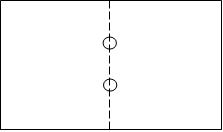
 

  Diagram of Mini Album


5.    Using those holes as marks, punch a hole big enough for a ribbon or string to go through.

6.    Close your book.

7.    You will notice that the inside pages are going to stick out. You can fix this by cutting down that edge with a ruler and a craft knife or using the ruler and tearing the paper towards you. You want those edges even.

8.    Thread ribbon or any kind of string or fiber through the two holes to bind the book. Tighten well.

9.    Now it’s time to decorate your mini-book or album. Make it fun or formal. Add embellishments, words, anything you like.

Tags:

Glenda on August 28th, 2009

I’m so happy to bring you the news that a new devotional book is out. This is called  “My Savior, 52 Weekly Devotionals on the Names of Christ”. You can buy it by clicking here. This is really a wonderful book, not just for giving to others as a tool of inspiration in these difficult times, but also to fortify your own faith.  Also, it’s wonderful as a Christmas gift. It is part of the Timeless Christian Classics series.

my-savior-cover2

Tags: ,

You can add a cool edge effect to your pictures using masks. These are jpeg images that you can apply to any picture. You can make your own using brushes or you can search for “free grayscale masks for photo edge effects” on the Internet. I’ll explain how to use them:

  1. Open Photoshop.
  2. Click on File, Open to open the picture or photo where you want to apply the frame.
  3. On the Layers Palette, double-click on the Background layer to convert it to a editable layer. Click OK.
  4. Now, Open the mask file.
  5. Make sure the mask has the same orientation as the picture. If not, click on ImageRotate Canvas.
  6. We are going to resize the mask; click on Image, Image Size. Now, click on  Window and click on the file name of the picture. Tricky, isn’t it? Click OK.
  7. The next step is to select the mask; press Ctrl+A and then Ctrl+C to copy it.
  8. Press the letter Q on your keyboard; that is the shortcut for Quick Mask mode.
  9. Press Ctrl+V in order to paste the mask. You are going to see a red mask around the picture.
  10. Press the letter Q again to exit the Quick Mask  mode. The red is going to be replaced by a selection.
  11. Go to the Layers palette and click on the Add Layer Mask icon at the bottom of the palette in order to apply the mask.
  12. The areas that were red when you pasted the mask, are going to be transparent now.
  13. Time to play even more:
  • You can create another layer behind the picture and give it any color or effect.

Tags: ,

Glenda on August 14th, 2009

This is a lot of fun and you can do it using the Color Balance method or the Selective Color:

 COLOR BALANCE: 

  1. From the Toolbox, click on the Elliptical Marquee Tool. Feather: 5 pixels (this can change depending on the photo that you are using). 
  2. Draw a circle, making sure that you are getting inside the whole pupil. 
  3. Press Ctrl+B to get the Color Balance dialog box. 
  4. Click on the Midtones radio button and now play a little with the color sliders (Red, Green, Blue…) until you get the color of your preference. 
  5. Now, click on the Shadows radio button to bring more life to the eye. Click OK. 

SELECTIVE COLOR: 

  1. Select the pupil/s as you did before. 
  2. Go to Image, Adjustment, Selective Color
  3. Select Neutrals from the Color drop down. On Method, click on the Absolute radio button. 
  4. Now, you can change the amount of color moving the sliders for Cyan, Magenta, Yellow and Black, until you achieve the color of your preference. 
  5. Click OK.
  6.  


Tags:

Glenda on August 14th, 2009

 Red eye removal is fast and easy with Photoshop: 

  1. From the Toolbox, click on the Red Eye Tool (you can find it in the same section as the Healing Brush). 
  2. Position your cursor over the eye and click, holding down the mouse and then dragging it until you draw a square on the eye. You don’t have to be too exact. 
  3. Photoshop will automatically identify the red area of the eye and will darken it. 
  4. Repeat the same process for the other eye if needed.
  5.  

Tags:

Glenda on August 8th, 2009

Inkscape would be my software of choice to convert any .png or .jpeg into .svg. Once an image has the .svg format, you can use that image to cut in any digital cutter like the Silhouette or Cricut machine.

These are the steps:

  1. Find a good .jpeg, meaning clean lines, better if it is in black and white.
  2. Open Inkscape and click on File, Import. Choose the graphic that you want and click on Open.
  3. Click on the image. Click on Path, Trace Bitmap.
  4. A new window is going to open. Click on Update and you will be able to see a preview of your image. Make sure the preview looks nice and clean; otherwise, change the value for Brightness Cutoff to a higher number. Close that window.
  5. In order to see your vector image, click on View, Display Mode, Outline.
  6. Save the file using the extension .svg or, if you are going to import it to a program like ROBO Master, save it as .dxf so you can import it from your ROBO Master software.

Hope this helps.

Tags:

Glenda on August 6th, 2009

I already posted about the process of deciding and buying the 3M 714 ATG glue gun. Now, let me tell you if I like it or not. The delivery was fast, 3 business days. The ATG 714 is kind of big, I have small hands, but it isn’t heavy, so I don’t feel uncomfortable to use it.

It’s a little bit tricky to assemble the roll of glue. I suggest to search in youtube how to do it. The directions that came with the gun, are not very clear. Really, don’t try to put that roll without looking at a video on youtube first. This is a good tutorial:


After everything is ready, you need to learn how to apply the glue: roll, stop and lift the gun if you want a cleaner strip of glue.

In conclusion, I really like the system and I would recommend it to any person that don’t mind having a big glue dispenser.  I’m happy with my purchase and so far, the glue is very sticky!

Tags: ,

Glenda on July 31st, 2009

Can you believe that a new, super tech digital cutter machine is landing to our crafty world? Oh well, looks like the new eCraft from Craftwell is arriving and maybe it will convince us of the great things it can do. But, let’s see the facts:

  1. Lightweight. You can take it anywhere.
  2. You can use it with a computer or stand-alone.
  3. No cutting mat. Well, you can see that as an advantage or disadvantage. We all know the advantages, but I’m worried about what is going to protect the machine. The mat is supposed to be the barrier between the blade and the other parts of the machine. Without a mat, I feel a little bit worried, but then again, maybe they invented something that will serve as protection.
  4. We need to consider what it can cut. I would love to have a machine that can cut almost anything, not just card stock.
  5. No cutting adjustments: that’s a blessing! It seems that I can never figure out the right amount of pressure for the blade.
  6. Multiple rollers allow you to use your scrap papers.
  7. Print and Cut: No need to change the blade for a pen. I wonder if you can have more than one color to choose from. Can you put your own pens or inks?
  8. Automatic paper system, just like your printer. That’s neat when you want to cut a design many times .
  9. It uses SD cards. Looks like they will be selling loaded SD cards and that you can download images from their website. You are going to be able to create your designs with the software included and sell them also.
  10. It takes 12 inch papers, but it can cut up to 10 inches wide and unlimited length.
  11. Price: About the $200.
  12. Tempting? Yes. But, we still need more time to know more about this cutter. Sounds good!

Tags:

Glenda on July 21st, 2009

You may find an image that is very intricate and want to change the background. What is the best way to select it? Every image is different, but you may want to try using the channels in Photoshop to make the selection:

  1. With your  image open, click on the Channels palette. Click on the eye from all channels in order to deselect them.
  2. Now, click one by one, making sure that when you select one all the others are deselected. This is to check which channel gives you the most contrast in the image.
  3. Right-click on the name of the channel and choose Duplicate.
  4. The only channel that you should have visible is the copy that you just made. Click on that copy.
  5. Press Ctrl+L to bring up the Levels window. On the Levels window, click on the white eyedropper at the bottom right.
  6. Now, move your mouse over your picture and click on a gray area. Anything less gray than that area is going to be white.
  7. After choosing your white point, you need to do the same with the black point using the eyedropper to the left and clicking on a dark gray pixel.
  8. If you want to keep something else from the picture, use a black brush to paint over it.
  9. Click now on the RGB channel. Pressing the Ctrl key, click on the copied channel.
  10. Click on the Layers Palette tab. You’ll see the marching ants around the dark selection. If you need to invert it, go to Select, Inverse.
  11. You can go back and forth and change what is in your selection.

This technique is useful when trying to replace backgrounds.

Tags: , ,