- V: Move tool.
- M: Marquee tool.
- L: Lasso tool.
- W: Magic Wand tool.
- C: Crop tool.
- B: Brush tool.
- S: Stamp tool.
- E: Eraser tool.
- G: Gradient/Paint Bucket.
- P: Pen tool.
- T: Type tool.
- I: Eyedroper tool.
- H: Hand tool.
- Z: Zoom tool.
- D: Set your default Foreground/Background colors to Black and White.
- X: Switch foreground and background colors.
Other useful shortcuts:
- Ctrl D: To Deselect.
- Ctrl S: To Save.
- Ctrl J: To Duplicate a Layer.
- Ctrl + /-: To Zoom In/Out.
- Ctrl N: To create a New document.
- Ctrl O: To Open a document
- Ctrl W: To Close the document.
- [ or ]: To increase or decrease Brush or Eraser size.
- Space Bar: To switch to the Hand Tool anytime.
- Tab: To show/hide the palettes.
My favorite Ctrl Z, guess for what? ….Undo

For visual people like me, fonts are like candies for children. We have great appreciation for their form and what they communicate, so… we like to collect them. The problem is not the addiction of collecting fonts, but the space they use up and how they can slow down the computer when you have too many fonts on your hard drive.
Something that can help you is to download a font manager or organizer. This is a program where you can see your fonts, organize them, and even install or uninstall fonts. I like AMP Font Viewer because it is simple and does all of the above. I can even see both my installed and non-installed fonts. Also, you can print a sample or just test how your text would look. You can download AMP by clicking on the link (it’s free).
Using a font organizer allows you to see what you have and look up which font is the most appropiate for your project. This is how I organize my fonts:
- Serif: When the characters have serifs. Serifs are small lines at the beginning and/or end of the stroke. An example of this kind is Times New Roman.
- Sans-serif: When the character doesn’t contain any serifs. Example: Arial.
- Script: Calligraphy and handwriting fonts.
- Holiday: Fonts for Halloween, Christmas, etc.
- Decorative/Funky: Fonts that have unique or extravagant shapes.
- Dingbats: Characters that look more like images than font.
- TrueType and OpenType if you have a digital cutter machine.
This is just an example how you can manage your fonts. Look at your own collection and decide the best names or characteristics for your fonts. Also, localize and delete the ones that are too similar or that you don’t like.
Tags: AMP font viewer, font manager, font organizer, fonts directory, how to organize fonts in my computer, software to organize fonts
Making your own stamps are fun and easy using Photoshop. In Photoshop world, these stamps are called Brushes. I will show you how to create a brush that you can use and reuse, changing colors or size:
- Open an image with strong lines or shapes.
- Double click on your Background layer. Click on OK to convert it to Layer 0.
- Select Image, Adjustments, Brightness/Contrast. Adjust the sliders Brightness to the left and Contrast to the right, until you have kind of a sharp image.
- Now, select Image, Adjustments, Threshold. Your image will look black and white, move the slider that controls the Threshold to adjust it.
- From the Toolbox, select the Magic Wand and click on any white area of your image, that would select all the white. Now press the Delete key. Your image will keep the black with a transparent background.
- Select Image, Image Size… and resize your image to no more than 4 inches.
- Now it’s time to create a brush based on this image. Select Edit, Define Brush Preset..., give it a name and click OK.
- Remember to save your Brush by clicking the arrow that is pointing down next to your brush on the Toolbar. Then, click on the double arrows pointing to the right and choose Save Brushes.
- You can use this brush or digital stamp as many times as you need it.
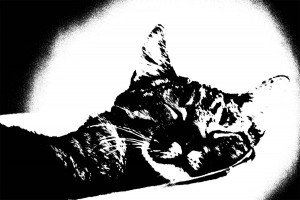
This is my cat Leo from a color photo to a digital stamp.


Tags: brushes for photoshop, digital stamp using photoshop, photoshop, photoshop tutorials
To create that grungy frame that is so popular now around pictures, you can do this:
- Open your image.
- Create a New Layer by clicking on the Create New Layer icon (the one that is next to the Trash Can in the Layers Palette).
- Set your Foreground color to white.
- Select your Brush tool and choose an irregular brush (like Spatter).
- Start painting with this Brush around your picture, just one click at the time. You can change the size of the brush and the Transparency if you prefer.
- At this point, you may want to add Text, also using White as Foreground.
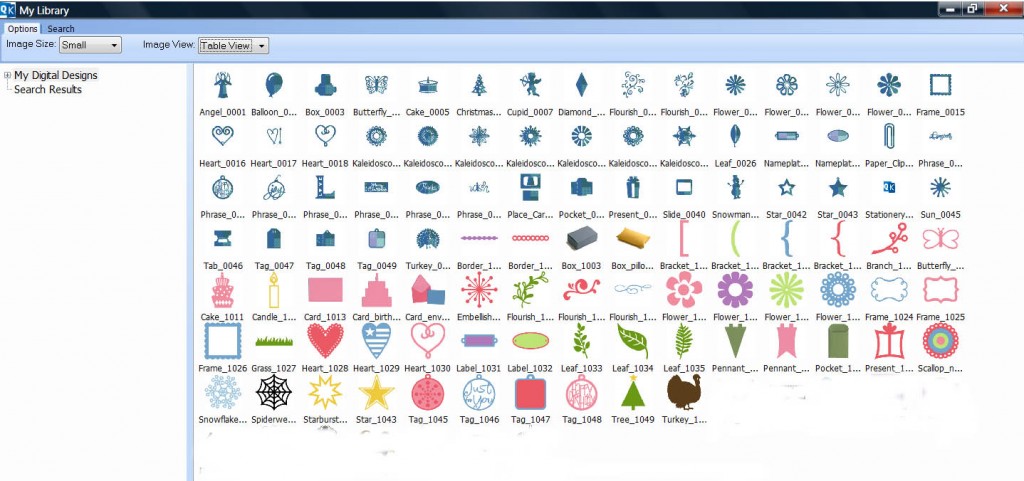
This is a screen shot of “My Library” once you install the software, following the directions that I posted before.

Tags: Quickutz Silhouette, ROBO Master

If you want instructions how to make it (using Photoshop CS), let me know! Have a great day.

Remember, clip art can be used as digital stamps. In order to create digital stamps using Word, first open Microsoft Word, then:
- Go to Insert, click on Picture, then Clip Art.
- In the Search Box, type the theme of clip art that you want to access, for example: flowers or butterflies.
- From the Search, click on the picture that you want to insert in your document.
- Now, double-click on the picture. The picture will be selected and you can format it.
- If you have Word 2003, you are going to see the Format Picture toolbar appear when you double click on the picture. If you have Word 2007, you will be able to access the Adjust group from the Format tab.
- Now, you can change the look of your clip art by using Recolor (2007) and converting the image to Black and White.
- Print this image and color it with your favorite markers, pencils, etc. Also, you can leave the colors or change them using the different options in Recolor if you are using 2007.
I made this butterfly using the method mentioned above.
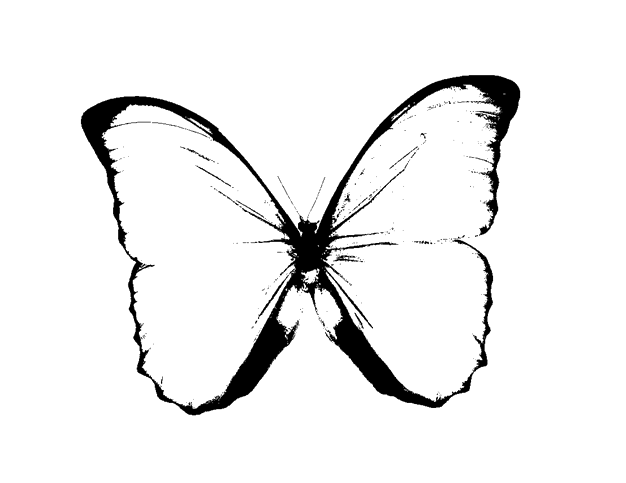
- Digital Stamp

Tags: clip art, digital stamps, scrapbooking, word
Digital stamps are high resolution graphics that you can store in your computer. These graphics can be clip art, jpegs, pngs, and tiff images that you create in Photoshop or using other programs like Word.
Digital stamps are used just like rubber or acrylic stamps. But instead of inking stamps, you will be printing on paper or cardstock using your home printer. Having a digital stamp means that you can resize it to your liking and then print it as many times as you need it. Once printed you can color your images just as you would with the regular stamps using color pencils, markers, etc.
If you are going to use watercolor pencils and apply water to your paper, then you should use the heat gun to your image before you start painting. Or you can emboss your image just when it comes out of the printer; this forms ridges that don’t allow the water to go to other sections of your graphic.
The great advantages of a digital stamp are that you can reuse it, resize it, change line colors, conserve physical space (they exist only in your computer) and the best thing is that you can make your own. I will be posting ways on how to make your own digital stamp using Photoshop and Word.
Tags: digital stamp, how to make a digital stamp, photoshop and digital stamp
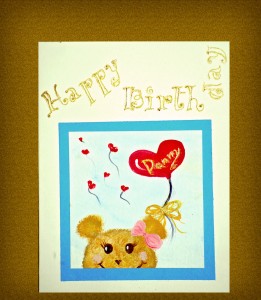
I painted this cute little bear and wrote the words with a gold pen. If you can’t paint, you can print a nice graphic and just add some personal touch with your handwriting.


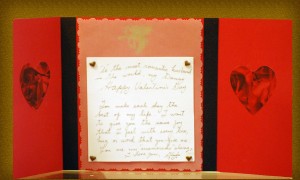
I made this card for a Valentines Day. It closes at the front with the heart. I hope you like it.