You can use your inkjet printer to emboss images with embossing powder. It’s really fun:
- From any software of your choice, open a clip art or write a title or word. Make it fancy or plain. I like it a little bit ornate.
- Use any kind of glossy paper, like photo paper or vellum in your printer.
- Set up your printer to print in high quality, selecting the appropriate paper.
- Have your embossing powder close and print your graphic.
- Immediately, pour the powder onto the graphic and with a soft brush take out the excess. Pour that excess back to the recipient where you have the embossing powder. Proceed to emboss using your embossing heat gun.
- Now you have an embossed graphic that you can paint inside (like watercolors) or you can use any other way to paint it if you like (markers, chalk, etc.) The raised embossed lines of the graphic is going to help you to stay inside the lines.
Pretty cool! You may need to experiment a little bit with the settings in your printer, but this method gives you great results.

Tags: embossing with printer
You may love a certain font, but it may be too thin for the purpose that you have in mind (ex. for cutting it with your digital cutter machine). If you want to make your letters thicker using Photoshop, follow these steps:
- Open a New Document, Letter size, 300 ppi and Transparent Background.
- Make sure your Foreground color is set to black. Using the Type tool, type your title. Set your font size to 100 pt approximatly.
- On the Layers palette, press the Ctrl key and at the same time click on the layer that has your text. Your text is now selected.
- Now, right click on the Type layer and select Rasterize Layer.
- On the menu bar, choose Select, Modify, Expand.
- Now you can type the number of pixels with which you want to expand your letters. Try Expand by: 10 pixels.
- Press Alt+Backspace and the selection is going to be filled with black.
- Deselect the type by pressing Ctrl+D.
- On the menu bar, choose Image, Trim. Your document will be the size of the title.
- Save your title.
If you want to use this title just for printing, you’re finished at this stage. If you want to make an outline for cutting it with your digital cutting machine, like the Silhouette, continue with the following steps:
- Save the image with another name if you plan to use the original for printing. Use a .jpeg or .bmp extension to make it available for the ROBO Craft program.
- Open your ROBO program. Create a New Document. From the menu bar, choose Insert, File. Look for your document and click OK. Now you are going to see a blue box; make a click inside the document and you will see the title that you created in Photoshop. Once your title is in the blank document, click on the Get Outline icon. Select the Outer Frame Only from the new window if you want only the outline of the letters (you are not going to include the inside cut of the Os for example). Click on Convert to Outline and then click on Paste then Exit.
- Now you have an outline that you can cut with the Silhouette.
- Save the file using the extension .gsd.
Enjoy cutting your own titles.
Tags: making fonts thicker for cutting, photoshop tutorials, Quickutz Silhouette
Once you create a path, you may want to change it:
- To Add a Node: Double-click on the path, wherever you want the new node.
- To Delete a Node: Click on the Node to select it and press the Delete key. If you want to preserve the shape when you delete a node, press Ctrl+Delete.
- Experiment a little with the Edit Paths by Nodes toolbar and see the different effect that you can give to the nodes.
Tags: Add new tag, bezier tool, Inkscape tutorial
If you want to put text on a path using Inkscape follow this tutorial:
- Click on the T for Text, type your text.
- Click on the icon to Create Spirals. Draw a spiral and change the Turns to approx. 2.
- Click on the Select and Transform Objects icon (that is the big arrow that you find in the toolbox) and select the text and the spiral that you created. Press the Shift key after you click on the text, and without letting go of the Shift key, click on the spiral in order to select both.
- On the Menu bar, choose Text, Put On Path.
- Now your text is following the path.
- Sometimes you don’t want to see the path, you just want to see the text. In order to do that click on Text, Remove from Path. It would look just like before putting it on the path. Now you can click on the path to select it, and on the Menu Bar choose Object, Fill and Stroke and click on the X for Stroke Paint, in order to remove the stroke or line.
- Now you can select both again and put the text on the path.
- If for any reason you want to change the shape of the invisible path, click on the text to select it, then on the Menu Bar, choose Edit, Clone, Select Original.
- Then, click on the Edit Path by Nodes icon on your Toolbox and click where your path should be. Now you can click and move the Nodes and change the shape of your path.
Tags: how to create text on a path with Inkscape, Inkscape tutorial
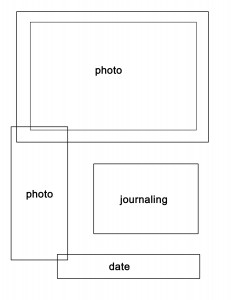
Layout for Scrapbooking
Right-click on the layout and select Save Picture or Copy to paste it on another document.

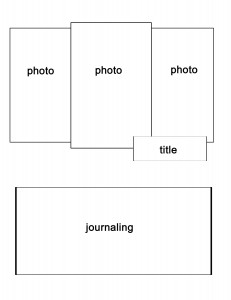
Just right-click and select Save Picture to have this layout.
I prefer to use photos with a not-too-busy background for this layout.

I use Microsoft Word for some designing. Let’s make a monogram:
- Open a New document.
- Select Insert, Textbox. Draw a text box approximately 2 by 2 inches. Now, type the letter of your choice. Format the letter. I chose a big size, 72 pt. Choose a nice font like Edwardian Script ITC or Vivaldi. Script fonts look nice or SanSerif fonts like Arial Narrow.
- Once you are happy with your first letter, you can create one or two other text boxes for the other letters (optional) and do the same formatting.
- Now, select the boxes: First click on the line of one box, let go of the mouse, then press the Shift key and click on the outline of the other boxes.
- Select Format and choose No Outline from the Shape Outline if you are using Word 2007. If you are using an older version, select Format, Textbox. Use for Color: No Fill and Line: No Line.
- Click outside the letters. Now, select one of the text boxes by clicking any of the letters. Move the pointer of the mouse on top of the box line and click, keep the mouse button pressed and drag the letter close to the other one. If you have more letters, do the same.
- Select all the text boxes by clicking on the first one, press the Shift key and click the other ones. Choose Format, Arrange, Group. For older versions of Word, keep pressing the Shift key and right click with the mouse on top of the letters, choose Grouping, Group.
- Now you can print your creation.
- Or, you can Copy it and Paste it in another program like Paint and save it as a graphic .jpeg.
Note: If you want to create your monogram using the ROBO Master program, just create a New File and Type the letters at different times (click ouside the blue box and click on the Text again for the other letter). Arrange the position of your letters. If you want, you can Weld them and cut them as one piece. I find this method much better that creating the monogram using Word if you are going to cut the monogram using your digital cutter. Definetely, the lines are crisper.
I hope this tutorial was helpful and that you can create your own monograms for boxes, scrapbooking and cards.
Tags: digital scrapbooking, how to make a monogram using word, Quickutz Silhouette, ROBO Master, word for scrapbooking
The Bezier tool is like the Pen tool in Illustrator. You use it to draw Paths. To create a path, you have to make a click, then click again in another spot.
With every click you create a Node. A single click creates a sharp node. If you want to make it curve, then you have to click, hold down the left button of your mouse and drag.
The lines that appear are called Segments; the green one is a finished segment, the red is an unfinished one. If you want just to keep the green one, press the Enter key; if you want to include the red one, double-click your mouse.
To undo the previous segment, press Backspace.
Tags: bezier tool, Inkscape tutorial
When I installed ROBO Craft and wanted to organize my files, I wasn’t able to do it since the buttons that are usually there to create new folders weren’t there. I was very disappointed since I love organization. My husband is great with computers and he found the way to fix the problem. I have another computer with Windows XP, the software is installed in that computer also. When I opened My Library on that computer, I could see the buttons to create New Folders.
The approach was to make my New Folders on the Windows XP computer. Then, we used a flash drive , copied the Data folder (in “Program Files\Robo Master\QKView”) and transferred it to my computer with Vista. Now I can see the new folders; still I can’t see the other buttons but at least I have everything more organized with the new folders that I created using the other computer. I just have to drag the icons to the corresponding area.
Tags: Quickutz Silhouette, ROBO Master
I love to put some type into my pictures before I send them to print. I usually do this:
- Open your photo. Choose a photo with an open background.
- Select the Type tool from the toolbox. Choose the color and size appropiate for the photograph. Move the text to the desired position.
- Give your text a Layer Style like Drop Shadow.
- If you want to make this type transparent, click on the Marquee tool, and drag a Rectangle around your text.
- Click on the “eye” icon of your type layer to make it invisible. Now, press Ctrl+C.
- Press Ctrl+V and you will have your type pasted in a separate layer.
- Make the original Type layer visible again by clicking on the little square where the eye was.
- Now move your mouse and click on the line that separates the original and the copied text layers. Make a click. You’ve created a clipping group.
- You can play now and change the settings from the Layers Palette and give the layer a Soft Light instead of the Normal.
- Keep experimenting with the settings until you are happy with the results.
Tags: how to add type to a photo, photoshop, photoshop tutorials