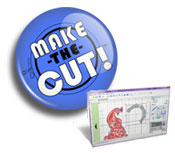
Once you draw a shape like a rectangle, right-click on top of your shape and choose Position Settings. You will see a new window where you can change the size of your shape.

Tags: Quickutz Silhouette, ROBO Master
If you want to use the Grids with your software, you can find it on Edit, Grid Settings. The Grid Spacing is 0.50 inches. You can change it to any size.
Tags: Quickutz Silhouette, ROBO Master
Sometimes, when you scan a photo, you’ll see a pattern over all the image. In order to correct this, you can try to blur the blue channel doing the following:
- With your image open in Photoshop, click on the Channel tab and click on the Blue Channel.
- Click on Filter, Blur, Gaussian Blur. The Gaussian Blur window is going to open; move the Radius slide to 2 or 2.5 pixels.
- You can blur the other channels also, but using lower settings.
- The image needs some sharpening at this point. Click on Filter, Sharpen, Unsharp Mask.
Tags: fixing a photo, photoshop tutorials, removing pattern from scanned photos
You can trace an image and convert that image from .jpeg or .bmp into a file that can be used by your digital cutter machine (like Quikutz Silhouette). Please follow these steps:
- Click on File and Import. Look for your image, click on it to select it and click on Open.
- You should be able to see your image now. Click on it to select it. Reposition or enlarge the image if necessary.
- Click on Path, Trace Bitmap. The Trace Bitmap window will open.
- You will see two tabs on the Trace Bitmap window (Mode and Options).
- On the Mode tab, you can play and change the settings until you find the one that is giving you the best outline. Remember that you have an Update button at the bottom right corner of the window. Preview your results until you are happy. If your outline is too weak, try a higher setting; if it’s too strong , try a lower one.
- When you click OK, you have already traced the image.
- Now click on the image and, without letting go of your left mouse button, drag the image to the side.
- With the traced image still selected, click on View, Display Mode, Outline.
Congratulations, you did it!!!. If you want to, now you can save it. Go to File, Save As and choose the extension .DXF
If you want to make the lines softer, you can simplify the nodes of your image. Click on the second icon from the toolbox, the one that says “edit path nodes…” when you put your mouse over. Click on Path and Simplify .
To cut your design, you need to open your software from your digital cutter machine, click on File and select Load DFX. Change anything that you want and save it as a GSD file.
I really hope this tutorial can help you. Remember to experiment and have fun in the process.
Tags: how to trace an image using Inkscape, Inkscape tutorial, Quickutz Silhouette, wishblade
Let me tell you first what is Inkscape:
- It is a vector-based software just like Illustrator. You are not dealing with pixels like Photoshop, so everything that you draw is going to keep those sharp edges even if you increase the size of your shape.
- You can use it to auto-trace .jpg and .bmp images and use these images for cutting when you save them using the .dxf format.
- You can create your own images.
If you are interested in downloading this program, you can find it at www.inkscape.org. It’s free!
Tags: Inkscape
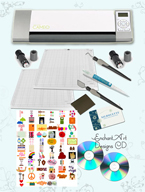
My machine arrived! It’s not as big as I thought, and that’s good, I like to save space in my home. If you are blessed with one, these are my suggestions:
- Open the box and make sure everything is there.
- Read the instructions.
- Install the program that comes in the included CD (follow instructions).
- Go to http://www.quickutz.com/qk2/silhouette/software.aspx and click on “Download Software for the Original Silhouette”. Download the software and install it. You are going to get 50 extra images doing this.
- You may not be able to see the icons for some of your images in the Library; according to QK, you need to do this:
“We apologize that you are presently unable to see the images in your library. In order to resolve this issue, we would direct you to close the ROBO Master software and save the following files to your computer:
http://www.quickutz .com/support/ PortfolioImages. zip
http://www.quickutz .com/support/ 50Images. zip
After saving these files to your computer, locate where you saved them and extract the contents (by right-clicking on them and selecting “Extract All”) to the following location: C:Program FilesROBO MasterQKView Thumbnail
Once you have done this, you may re-open the Silhouette’s ROBO Master software and open your library. Your images should now be displayed in your library.
Thanks,
The QuicKutz Team”
I did this and it worked fine for me.
Now you can start experimenting with your new software, even if you don’t have the Silhouette connected to your computer.
Tags: Quickutz Silhouette
I have several good reasons to get this machine:
- I like cutting things but I don’t have the patience to cut intricate designs by hand.
- I use my laptop for cardmaking and scrapbooking.
- I don’t like to buy expensive cartriges of designs or bulky die cuts that other cutters need.
- I want to have the option to create my own designs.
- I looove fonts. This machine can cut any True Type font installed in your computer; you can even download free fonts.
- I want to be able to resize the fonts and designs.
- The most important…….it is discounted…..I bought it for a great price.
I’m still waiting for the delivery but I’m sure I’ll have so much fun with it. By the way, even my husband wants to play with it. Fun!
If you want to change the cursors, the size of the Grid or the Ruler settings without going to Edit, Preferences, just double-click on the ruler. You will have access to all the editing options from there.
- Select File, Open and choose a photo that you want to use as the filling for your text.
- Select the Text tool and a large size font (Arial bold or something like that)
- Type your text. Photoshop is going to create a Type layer.
- Select the Move tool and position your type. Also, change the size if you need to, using the square anchors.
- Press Ctrl and click on the Type layer. You are going to see marching ants around the text. The text is now selected.
- Choose Select, Inverse from the menu.
- Click the Type layer and drag it to the trash can.
- Press Delete to get rid of all the surrounding area outside the selection.
- Finished.
This is an easy way to create your own titles using photos. If you are going to use this on top of another background, you may want to use an Emboss and/or Drop Shadow effect from the Styles and Effects.
I really like fonts. They reflect the mood and style of your projects. There are many fonts installed in your computer and there are more that you can download from the internet. Follow these steps to add new fonts to your computer:
-
Open a website that offers free downloadable fonts (ex: www.myfonts.com ).
- Follow the instructions provided from the website.
- Click on the Start Button and choose Control Panel.
- In the Control Panel, double click the Fonts icon. The Fonts window opens, revealing all the fonts installed on your computer.
- Choose File, Install New Font. A dialog box appears showing the new fonts available for installation.
- Select the font/s that you want to install and click OK.
Tags: download fonts