I may be able to speak the languages of human beings and even of angels, but if I have no love, my speech is no more than a noisy gong or a clanging bell. I may have the gift of inspired preaching; I may have all knowledge and understand all secrets; I may have the faith needed to move mountains-but if I have no love, I am nothing. I may give away everything I have, and even give up my body to be burned but if I have no love, this does me no good.
1 Corinthians, 13:1-13
Two are better than one, because they have a good return for their work: If one falls down, his friend can help him up. But pity the man who falls and has no one to help him up! Also, if two lie down together, they will keep warm. But how can one keep warm alone? The one may be overpowered, two can defend themselves.
Ecclesiastes 4:9-12

Tags: free quotes love, valentines
When one finds a worthy wife, her value is far beyond pearls. Her husband entrusting his heart to her, has an unfailing prize.
Proverbs 31:10-11
So they are no longer two but one flesh. Therefore what God has joined together, no human being must separate.
Mark 10 2-16
A happy marriage is a long conversation which always seems too short.
Andre Maurois
The married are those who have taken the terrible risk of intimacy and, having taken it, know life without intimacy to be impossible.
Carolyn Heilbrun
A successful marriage requires falling in love many times, and always with the same person.
Mignon McLaughlin
Marriage is the school of love.
Martin Luther

D and G
I’m deeply in love with the most wonderful man in the world. Yes, I had heartaches but the blessings that I have sharing my life with my soulmate overcome anything. I hope many wonderful things happen to you on Valentines Day and always.

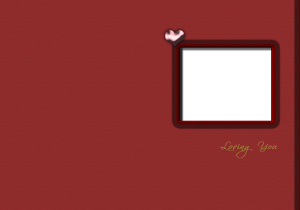
Red Valentines Card
This is another card that I made using the same template. Just download it on your computer and save it. Insert your favorite photo and enjoy it.
Click here to download the card.

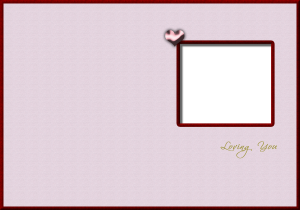
Pink Card Valentines
I made this card using Photoshop. You can download it and insert your own picture using any photo editor program. Download it to your computer and save it on your Desktop or any folder that you want. Open the template of the card using your photo editor program.
Click here to download your card.

I’m a computer graphic designer, right? I should do, logically, everything on the computer, but I love to use my creativity on other things too, away from the screen. One of those things is stamping; now I’m using the clear stamps with the acrylic block. I like them, just let me share some of my troubles and discoveries:
- Clear stamps don’t need a lot of space for storage. They come in these transparents sheets and you take them out, position them or it on the acrylic block and add the color. Great!
- You have to condition your stamps when they are new. When I started to use them, I use dye ink and to my frustration I could only see little drops of ink pooling together. Why were my stamps repelling the ink? This was good ink….. Now I know, I have to condition the stamp before using it. I love them, I don’t want to use anything too abrasive, so I take an eraser and scrub the surface. I notice that using pigment ink, the image is more solid.
- How do I clean them? Just warm water and mild soap. Gentle rub the surface, dry them and store them in the same transparent sheet.
- One more thing: storage. Don’t leave them too exposed to the sun, they become hard.
There you are: stamp, stamp, stamp.
Tags: clear stamps, how to clean clear stamps, how to use clear stamps, stamping techniques
You can make your own brad and change the color of it whenever you need to. To make your own brads in Photoshop, follow these steps:
- Go to File, New. For the Width and Height, choose 2 inches, the background shoud be transparent, the resolution 300 pixels/inch.
- Now click on the Marquee Tool and while holding down the Shift key, draw a circle.
- Click on the Paint Bucket Tool and click inside your circle to fill it with the color of preference.
- Now go to the Layer, Layer Styles and choose Bevel and Emboss. In the Layer Styles window, with Inner Bevel chosen, adjust the shadow size, bevel size and lighting angle with the controls and sliders .
- Save your file as a Photoshop file or click on Save As and choose the .PNG extension.
Sometimes you can find yourself with a great painting but notice that the canvas looks loose. A quick remedy to that is to mist the painting with water from the back of the canvas. Don’t wet the canvas too much, just a fine mist. It doesn’t take much to get the effect.
Tags: how to tight a canvas
I was very tired yesterday. I work with computers almost all day and making cards is a great way to develop another part of my brain. I like to produce as many as I can since my time is limited. One of my little tricks is:
- Cut as many as card bases as you can or buy a box of blank cards.
- Have some background paper, different sizes. Since I bought my Sissix embossing machine, I have many scraps dried embossed, ready to use.
- Have a box of embellishments such as already cut phrases, cutouts, buttons, etc.
- Take out glue, glue dots, scissors.
- Now, you can start using your creativity. Just coordinate colors, play with backgrounds, etc.
Some of my cards look finished when I complete the session, others look like they need more work. I separate them and put the finished ones in the “finished cards” box, and leave the other ones for next time when I just concentrate on adding details like stamping, eyelets, etc.
Enjoy your time making unique creations. I feel great when I give away some of my art, but at the same time it is like letting part of me go.
Tags: cards supplies, greeting cards, organizing to make cards
If you are planning to put your photos on the Internet and provide them some protection against piracy, you may want to add the copyright symbol to them. Follow these steps:
-
Create a New Document.
-
Press D to make your foreground color Black.
-
Choose the Type tool and select Arial Bold. Press Alt + 0169 to create the copyright symbol or you can find the same symbol from the Custom Shapes dropdown menu.
-
Make sure your Type tool is selected and type your name.
-
Click on the Layer where your name and/or copyright symbol is.
-
Click on the Filter menu and choose Stylize, Emboss.
-
On the Layers palette, change the layer mode to Hard Light.
-
Repeat the same process for the symbol if it wasn’t in the same layer as the type.
-
Click on Image, Trim based on Transparent Pixels.
-
Save this file to use it with any photo.
I like this way of watermarking the copyright because it allows me to put that notice wherever I find more appropiate for my photo. I hope you like it.
Tags: photoshop tips. how to add a watermark copyright to a photo