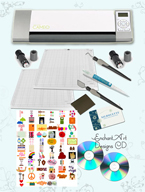
I am experimenting with the Big Kick and the embossing plates. If you are using the Fiskars templates, I recommend that you mist your paper with a fine mist of water before embossing; do not wet them too much, just a mist. The result is a deeper impression of the templates on the paper. I hope you are having fun with your machine. Remember, don’t feel guilty if you take a little bit of time just to play.

The Type Mask tool allows you to “cut” letters out of a background.
-
The first thing is to open a nice background.
-
Then click on the Text tool from your tools palette and choose the Horizontal Type Mask.
-
Choose a thick and large font size (Arial Bold) and click anywhere on your background. You will see a reddish color over your background. That’s fine.
-
Type your letter on the background. Remember, you can move your mouse away from the letter and click and drag the letter around on the background until you find a good spot.
-
Select the Move tool. Now you see marching ants around the letter that you typed. That means that is a selection.
-
Copy (Ctrl+C) in order to Paste it (Ctrl+V) in another document.
My Nikon camera is wonderful and I love it. Sometimes these great cameras are too sharp for portraits. If you want to add a soft effect to the portraits you take, a diffusion filter is the solution. Some are very affordable and easy to find through the Internet.
Another option is to instead use a pantyhose stretched in front of the lens. Just make sure you use a rubber band or elastic to keep it stretched. This is going to give your portrait a soft effect.
Try it and let me know!
- Select the Elliptical Marquee Tool from the Toolbox. On the Options bar at the top, change the Feather to 50 px. (Once you learn this technique, you can change the number of pixels.)
- Now position your cursor at the top left of the image, leaving some space. Click, hold down the mouse and drag to the right and down, around the object/subject that you want to keep.
- Position your cursor (without clicking) inside the ellipsis and right click. Choose Layer Via Cut.
- Look at the Layers palette: you have a new layer. This layer contains the image with a soft vignette. You can hide the Background Layer by clicking on the eye for that layer or you can delete it by dragging it to the Trash can icon.
- You can use the vignetted image like that or you can add a background to make it pop.
- In order to add a background, create a New Layer by clicking on the icon next to the Trash can icon or click on Layer, New.
- Drag that transparent layer to the bottom of the Layer palette.
- Click on the Paint Bucket and select any Foreground Color.
- Click anywhere on the image. The empty layer now should be filled with the new color.
- You have a background and the photo with vignette at the top of the background layer.
Experiment with the number of feathering pixels and with the background colors. It’s a lot of fun!
To embed the copyright into the photo file:
-
Click on File, click on File Info.
-
Choose Description and change the Copyright Status from Unmarked to Copyrighted. In the Copyright Notice field enter your personal copyright info ( Copyright 2009 Glenda Castillo) and under Owner URL enter your full Web address if you have one.
Tags: copyright a photo, photoshop
If you have a great photo but the sky is not that great you can replace it for another one from another photo. I have done this many times and can make a big difference:
-
Open the photo that needs another sky. Select the sky.
-
Open the photo with a nice sky. Select the sky from the second photo. Press Ctrl+C to copy the nice sky.
-
Switch back to the original photo (the sky should be still selected).
-
Create a New layer. Then, click on Edit and Paste Into. Now you have the new sky instead of the old one.
You need to glaze and you don’t have any glazing? Follow this recipe to make your own:
Mix equal amonts of: water-based varnish, acrylic retarder and water. Stir until well mixed.
To change the color of a glaze just add any water based paint to it.
Tags: acrylic glaze, how to make glaze
I recommend priming your surfaces for decorative painting. The primer is going to seal the surface and give you a smooth foundation for your decorative painting. I recommend a water-based primer since they dry fast and are very easy to use and to clean after you finish.
You have to choose the appropiate prime according to your surface .
Tags: decorative painting, priming
If you have a photo partially affected by a flash, do this:
First, select the area where the flash affected the photo.
Go to Select, Feather and choose 25 pixels.
Ctrl+L to bring up the Levels. Drag the output levels to the left to darken the selection.
Enjoy!
Make a background copy using the Ctrl+J command. Set the blending mode to Multiply. Repeat if necessary or change the Opacity of that layer until your picture looks great.
Tags: fixing a picture, photoshop